To fix a disapproved product in Google Merchant Center, open the issues list, group items by cause and start with the cause that affects the most items. The most common are a wrong identifier, a price that differs from the site, a noncompliant image and a missing required attribute. Fix the source record so every channel gets the fix.
Monday starts with an email from Google: part of the catalog was disapproved or has limited reach. The Merchant Center diagnostics list shows hundreds of items, each with a short message, and nobody knows where to start. Meanwhile, the disapproved products are not showing.
The good news is that most disapprovals repeat. If you know which causes to look for, you can catch them in the product data before the feed goes out instead of chasing them afterwards.
Read the diagnostics by cause rather than by product
The first step is to change how you read it. The list of disapproved products is daunting; the list of causes usually runs to half a dozen lines. Merchant Center groups the issues by type and shows how many items each one affects. Tackle the cause that affects the most items first.
How do you fix a disapproved product, step by step?
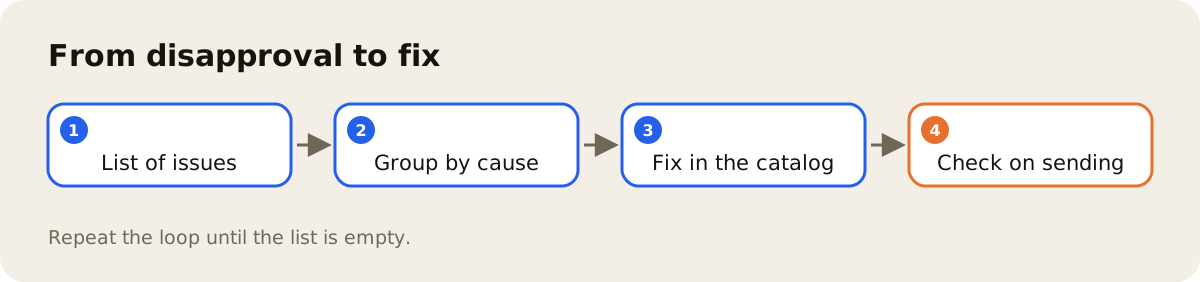
What works is five steps, always in the same order:
- Open the "Needs attention" tab. The Merchant Center help on product status points to that tab as the place to diagnose issues.
- Separate disapproved from limited. According to the same help, a disapproved product cannot be shown on Google, and a limited one appears only in some cases.
- Group the items by cause and note how many each one affects.
- Fix the data at the source. For identifiers, Google's help on product identifiers warns that incorrect identifiers can lead to disapproval. For price, the guidance on mismatched price says to update the price in the data source to the same value as on the site.
- Check the list the following week and confirm that the cause you fixed is gone.
The causes that show up most
- Missing or invalid identifier. A GTIN missing where the product has a code, a code copied across variations or a wrong check digit.
- Mismatched price or availability. The value in the feed does not match the one on the product page, almost always because of a promotion or a change made in the store that did not reach the feed.
- Image that breaks the rules. A photo that is too small, has promotional text over it or does not show the product.
- Missing category or required attribute. Some categories require fields such as color, size or gender.
- Landing page problem. A broken link, or a page that redirects to another product or does not show the price.
- Google policy. Restricted products or descriptions that violate a rule. These call for reading the specific policy in the Merchant Center Help Center.
Each channel's image rules are covered in product photos by channel, and the fields that decide whether an item shows up are in the Google product feed.
Why not fix it in Merchant Center
You can adjust some fields inside Merchant Center itself, with feed rules. It works as a patch, but it creates a second version of the product that the rest of your operation never sees. The marketplace and the store keep the wrong data, and at the next update the patch may not cover the new case.
The fix that lasts happens in the product record: the GTIN goes into the right field, the variation gets its own code, the main photo is replaced. That way Google and every other channel receive the same corrected data.
Prevention: check before you publish
A good share of these causes can be seen before the product goes out:
- The products that should have a GTIN have one, and no code repeats across variations.
- The feed price comes from the same source as the store price.
- Every variation has its own photo, linked to the SKU.
- The category's required attributes are filled in.
An issue list with product name and SKU, reviewed before every publish, costs far less than a disapproval.
Where AdCore Turbo helps
In AdCore Turbo, Feed Health points out, at the SKU level, the required field that is missing for the channel, such as title, description, link, image or price, and gives a score from 0 to 100 per feed. In the product record, each SKU also shows whether its barcode fails the check digit. The system shows where the problem is; your team fixes it in the product record, and the version history logs the change. Publishing to Google goes through the Merchant API, and the same product record feeds the other channels in feed management.
The number worth tracking is the Merchant Center issue list: how many items each cause affects, week over week. One of the causes, the identifier, has a post of its own: GTIN and EAN in e-commerce.